Showing posts with label Google Play store. Show all posts

Friday, April 14, 2017

Android Trojan Targeting Over 420 Banking Apps Worldwide Found On Google Play Store


Thursday, April 13, 2017 Wang Wei


Do you like watching funny videos online?

I am not kind of a funny person, but I love watching funny videos clips online, and this is one of the best things that people can do in their spare time.

But, beware if you have installed a funny video app from Google Play Store.

A security researcher has discovered a new variant of the infamous Android banking Trojan hiding in apps under different names, such as Funny Videos 2017, on Google Play Store.

Niels Croese, the security researcher at Securify B.V firm, analyzed the Funny Videos app that has 1,000 to 5,000 installs and found that the app acts like any of the regular video applications on Play Store, but in the background, it targets victims from banks around the world.

This newly discovered banking Trojan works like any other banking malware, but two things that makes it different from others are — its capability to target victims and use of DexProtector tool to obfuscate the app's code.


Dubbed BankBot, the banking trojan targets customers of more than 420 banks around the world, including Citibank, ING, and some new Dutch banks, like ABN, Rabobank, ASN, Regiobank, and Binck, among many others.


How Android Banking Trojan Works
In a nutshell, BankBot is mobile banking malware that looks like a simple app and once installed, allows users to watch funny videos, but in the background, the app can intercept SMS and display overlays to steal banking information.

Mobile banking trojan often disguises itself as a plugin app, like Flash, or an adult content app, but this app made its way to Google Play Store by disguising itself as any other regular Android app.

Google has removed this malicious app from its Play Store after receiving the report from the researcher, but this does not mean that more such apps do not exist there with different names.

"Another problem is that Google [Play Store] mainly relies on automated scanning without a full understanding of the current obfuscation vectors resulting in banking malware on the Google Play Store." researcher told The Hacker News.Once downloaded, the app persistently requests administrative rights, and if granted, the banking malware can control everything that's happening on an infected smartphone.

The BankBot springs into action when the victim opens any of the mobile apps from a pre-configured list of 425 banking apps. A complete list of banks a BankBot variant is currently imitating can be found on the blog post published by the researcher.

Once one of the listed apps is opened, BankBot immediately displays an overlay, which is a page on the top of legitimate mobile banking app and tricks Android users entering their banking credentials into the overlay, just like a phishing attack.


This will not only sends your banking credentials to your bank’s servers but also sends your financial credentials to the server controlled by fraudsters.

This social engineering technique is often used by financially motivated criminals to deceive users into giving up their personal details and sensitive banking information to fraudsters.


How to protect yourself?
There are standard protection measures you need to follow to remain unaffected:


Install a good antivirus app that can detect and block such malware before it can infect your device. Always keep the app up-to-date.
Always stick to trusted sources, like Google play Store and the Apple App Store, and verify app permissions before installing apps. If any app is asking more than what it is meant for, just do not install it.
Do not download apps from third party source. Although in this case, the app is being distributed through the official Play Store, most often such malware are distributed via untrusted third-party app stores.
Avoid unknown and unsecured Wi-Fi hotspots and Keep your Wi-Fi turned OFF when not in use.
Be careful which apps you give administrative rights to. Admin rights are powerful and can give an app full control of your device.
Never click on links in SMS or MMS sent to your mobile phone. Even if the email looks legit, go directly to the website of origin and verify any possible updates.

Thursday, February 9, 2017

Google launches Android Wear 2.0, an evolutionary upgrade to the smartwatch OS

Google launches Android Wear 2.0, an evolutionary upgrade to the smartwatch OS

Image Credit: Google
By 
Google has launched Android Wear 2.0, the newest version that will power smartwatches. The upgrade was announced last year during Google I/O 2016 and the update is a few months late than what was originally planned. The company has not made any revolutionary changes to the smartwatch experience to change how we look at smartwatches. Instead, the company has added updates to many key components of the operating system which will enable faster access to the things that you performed on your Android Wear-powered smartwatch.
Image Credit: Google Android
Android Wear 1.0 was a bit complicated and most of the operations that you wanted to perform seemed more complex than they should be. Google focused on improving this by removing the complexity. The first important change that you will se is the presence of better Watch Faces and an easier way to change Watch Faces.
Image Credit: Google
Google has changed the fundamentals of watch faces by adding space to show information from the system as well as third-party apps like Uber, Nike and other fitness or weather apps. This is done by collecting the information using the Complications API. The process to change Watch Faces is as easy as flicking left or right instead of long pressing on the screen to go to a screen where you can change the watch faces.
Image Credit: Google Android
The second most important improvement is the introduction of standalone apps that don’t need companion apps on your smartphone. You don’t need to install separate apps on your smartphone to help run the Android Wear apps. You can now access Google Play Store on the watch and install new apps without the need of a smartphone. The interface of Android Wear 2.0 is more in line with the Material design guidelines with more emphasis on cards where each notification will get a full screen for its expanded view.
Image Credit: Google
Another significant improvement is the addition of Android Pay to Android Wear 2.0. You can use your Android Wear 2.0 powered Smart watch to pay using Android Pay. One thing to note is that the smart watch should be equipped with NFC  and your smartphone must have a locked bootloader.
Image Credit: Google
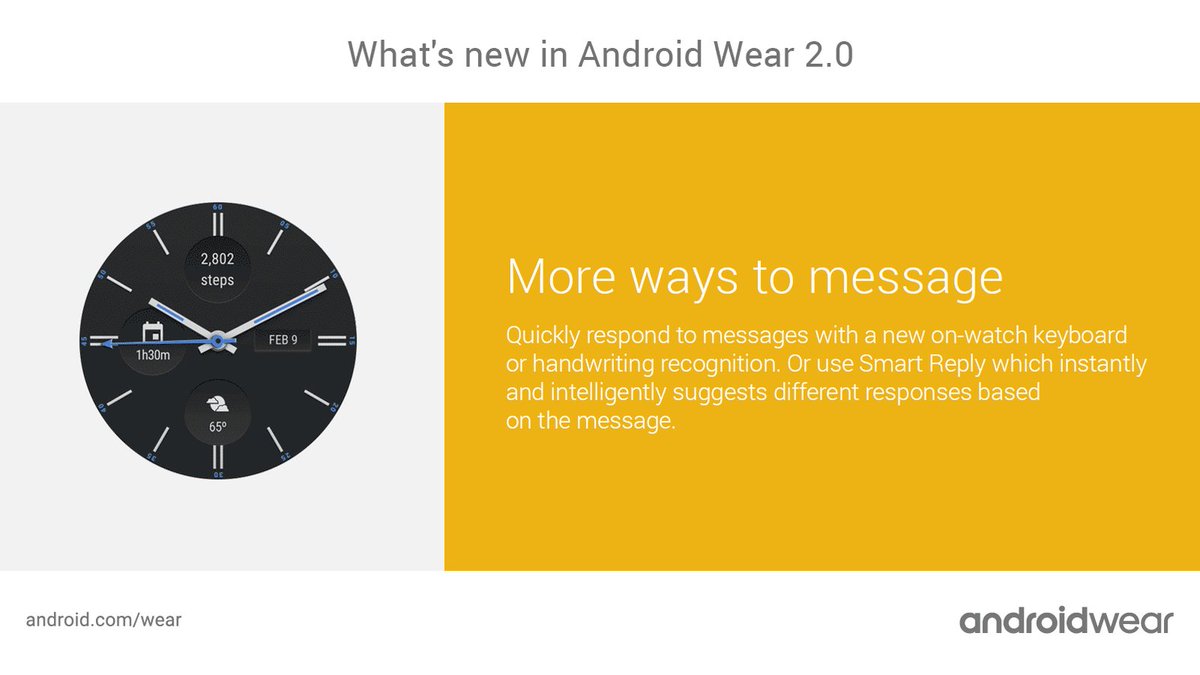
Google has improved other things like the Google Fit app for Google Android Wear where it now supports more type of workouts and exercises. One interesting thing to note is that Android Wear 2.0 comes with a keyboard to type your responses on. One would obviously not use that keyboard to write long articles or something huge in size. The major thing that makes the keyboard on Android Wear 2.0 significant is that you no longer need to swipe across a Qwerty layout screen to type a message. Instead, the keyboard is powered using the powerful prediction engine of Google Keyboard which works surprisingly well. You can also handwrite messages or use smart reply for Google Assistant.
Last but not the least, Google has added Google Assistant to Android Wear 2.0 making it a significant improvement over Android Wear 1.0 and Google Now. This is almost like Google Assistant on Google Home or Google Pixel smartphone. One thing to note is that Google has changed its philosophy after realising that one does need some physical input to operate Android Wear, making the presence of buttons and dials mandatory on the new models of watches; a far cry from what it was earlier.

Friday, November 11, 2016

WhatsApp adds Two Step Verification to Android along with other new features

WhatsApp adds Two Step Verification to Android along with other new features

Image Credit: WhatsApp
By 
WhatsApp is rolling out an update that adds Two-Step Authentication to your WhatsApp account. This feature is an essential method to ensure the safety of your WhatsApp account. WhatsApp had been internally testing this feature since last few months to finalise the exact implementation of the security countermeasure with reports going back to July.
WhatsApp Two-Step Verification
Two-Step Authentication, named as “Two-step verification” is located under the Account section on the main “Settings” menu. This adds a passcode to your WhatsApp account which is required for every time you register your contact number with WhatsApp number. The setup process is simple where you only need to tap on the option and follow the instructions. The setup asks you to enter a six-digit passcode and verifies the code. It also gives you the option to enter an email address as a backup to reset the passcode if you forget the passcode or misplace it.
WhatsApp Two-Step Verification
WhatsApp Two-Step Verification Setup
You can skip entering the email address but skipping a backup method is not recommended as losing the passcode will lock you out of your WhatsApp account. Once the setup process is completed, the “Two-step Verification” gives you easy options to ‘Disable’, ‘Change passcode’ or ‘Change email address’.
WhatsApp GIF Search
Search GIF’s straight from the keyboard
This new feature is available on the latest WhatsApp Android Beta version. You need to enrol in WhatsApp Beta program from Google Play Store WhatsApp listing page. This comes right after the company launched GIF Search for Android along with the ability to convert Live Photos as GIFs for iOS.
WhatsApp Live Photos GIFs
Convert Live Photos into GIFs
The developers for the platform have consistently been trying to introduce new features after the introduction of the official WhatsApp Beta program for Android. The company has added a new “Status” tab to mirror the functionality of destructible images or videos like ‘Snaps’ in Snapchat.

Monday, October 17, 2016

Samsung Chromebook Pro leaks in all its metal glory; comes with 2K display and Pen Stylus

Samsung Chromebook Pro leaks in all its metal glory; comes with 2K display and Pen Stylus

Image Credit: Samsung
By 
New Chromebook models are just around the corner. Samsung has listed the latest model, Chromebook Pro, on its South Korean website. The latest Chromebook sports a 2K, 12.3-inch display with 3:2 aspect ratio along with effective resolution of 2400 x 1600.
Image Credit: Samsung
Samsung Chromebook comes with an all-aluminium design and a 360-degree hinge which effectively turns the device into a 2-in-1, allowing it to be used as an ultrabook as well as a large tablet. On the specs front, the Chromebook comes with a hexa-core processor with two Cortex-A72 and four Cortex-A53 cores, clocked at

Tuesday, October 4, 2016

How to install Android apps on your supported Chromebook


chromeandroidhero.jpg
By   | October 3, 2016, 7:46 AM PST

If you've been wondering how to enable the Google Play Store on a supported Chromebook device, Jack Wallen shows you how.


You've heard plenty about Chrome OS running Android apps. You may have even witnessed images of various Android apps running on a Chromebook. But chances are, you've yet to read about how to actually make it work. I happen to be lucky enough to own one of the currently supported Chromebook devices (Pixel 2) that supports the installation of Android apps. I have to tell you, this new feature brings a whole new level of productivity to the Chromebook. Not only can you easily extend the feature set of your device, you can handle productivity in ways you might not have otherwise enjoyed.
The only caveat (besides having to have one of the few select supported devices), is that installing Android apps isn't as simple as heading over to the Google Play Store and clicking Install on the apps you want. First off, you have to have the latest build of Chrome OS (build 53 or newer, with

Monday, October 3, 2016

How to Fix “Check Your Connection and Try Again” in Google Play Store


Joel Lee October 3, 2016 1 minute

As an Android user, you’ve probably run into your fair share of app issues and operating system glitches. (Not that iOS is any better — those users have their own kinks to work out.) And one of the more problem-prone areas is the Google Play Store.20 Common Android Problems Solved 20 Common Android Problems SolvedHaving problems with your Android device? We can solve it!READ MORE

When you have problems with the Play Store app, there are a handful of simple fixes that will work most of the time and you should always start there — but sometimes, as is the case here, you’ll need to try something a little more outside the box.

If you keep seeing “Check your connection and try again” and nothing works to fix it, try the following methods. These steps are for Android 5.1 but should be similar regardless of your Android version.

Method 1: Change time settings.
Open Settings and select Date & time.
Disable Automatic date & time.
Disable Automatic time zone.
Select Set date and go forward by five years.
Open the Play Store app and let it connect.
Go back and enable both Automatic date & time and Automatic time zone settings.

Method 2: Remove the host file.
You must have a rooted Android device.
You must have a file manager app that can view system files. I use File Manager by ZenUI.
With your file manager app, navigate to /root/etc/ and look for the hosts file (it doesn’t have an extension).
Remove it or rename it (e.g. hosts-backup).
Reboot your device.
Open the Play Store app and let it connect.

Method 3: Change DNS server.
You must be using a Wi-Fi connection.
Open Settings and select Wi-Fi.
Tap-and-hold the network you’re connected to and select Modify network.
Enable Advanced options.
Change IP settings to Static.
Change DNS 1 to 8.8.8.8.
Change DNS 2 to 8.8.4.4.
Tap Save.
Open Settings and select Apps.
Under All, clear the cache for these apps: Google Play Store, Google Play Services, and Google Services Framework.
Open the Play Store app and let it connect.

Which one worked for you? If none of them did but you found a different solution elsewhere, please let us know in a comment down below! Thanks.

Tuesday, September 27, 2016

Pokémon Go buzz cools but the AR game is not out despite being down


Does “Pokémon Go” have a second act? The mobile phone app was an instant hit when it debuted in July. Crowds stampeded after a Vaporeon in Central Park and people fell off cliffs playing it in California. At an Apple event on Sept. 7, Niantic CEO John Hanke said 500 million people had downloaded the game in just two months. It was the first mobile game to go mainstream in a big way since “Candy Crush” in 2014 or “Angry Birds” in 2012. It was also the first to
Related Posts Plugin for WordPress, Blogger...